
Part of Vyce Time
Vyce NFC & Checkpoints
A tap at the right place. A clear record of who was there.
Vyce NFC
Right place. Quick tap. Clocked in.
Bring clock-in to the exact spot you choose—your site entrance, office or a particular point on the job.
Choose NFC in your location settings and enter your plate’s code. When a team member clocks in or out, Vyce activates their phone’s NFC reader. They tap the plate, and Vyce checks it against the code linked to that location.
Use NFC on its own, or combine it with a selfie, device biometrics or GPS. You decide what works for each location.
Your location. Your clock-in rules.
Selfie
Validate a team member’s face against their selfie as part of clock-in.
Device biometrics
Use the biometric check on their phone, such as a thumbprint or facial recognition.
GPS
Check their location against the point you’ve chosen on the map in your location settings.
NFC
Check a tap against the plate code linked to your location. Use it alone or alongside other checks.
Getting set up
Set the location. Link the plate. Let them tap.
Choose your checks
When setting up a new location, choose how your team will clock in and out: selfie, device biometrics, GPS, NFC or a combination.
Enter the plate code
If you choose NFC, enter the plate’s code in that location’s settings. This links the plate to the place where your team will clock in and out.
Put it where it matters
Fix the plate at your chosen point—such as the entrance or office. Team members open clock-in on their phone and tap when prompted.
A familiar flow on their own phone
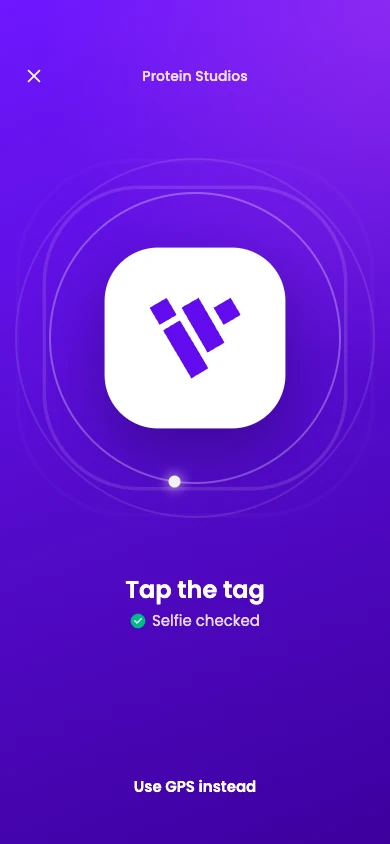
Here’s an example with a selfie check followed by an NFC tap.
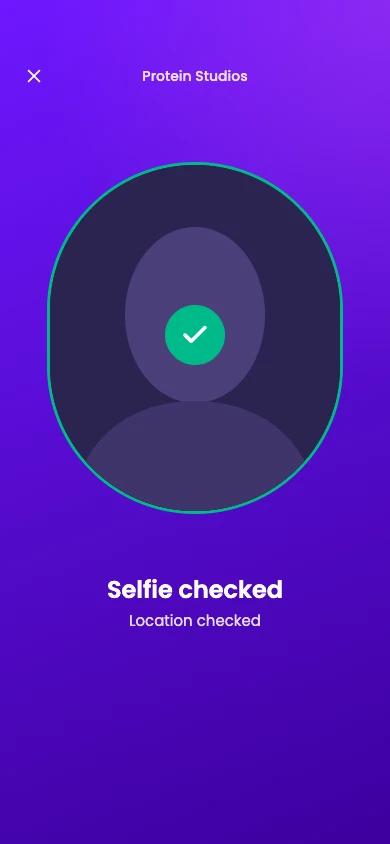
1. Your chosen checks
If your location uses a selfie, Vyce validates it before the tap. Device biometrics and GPS are also available.
2. Tap the plate
The phone’s NFC reader checks the plate’s code against the code in your location settings.
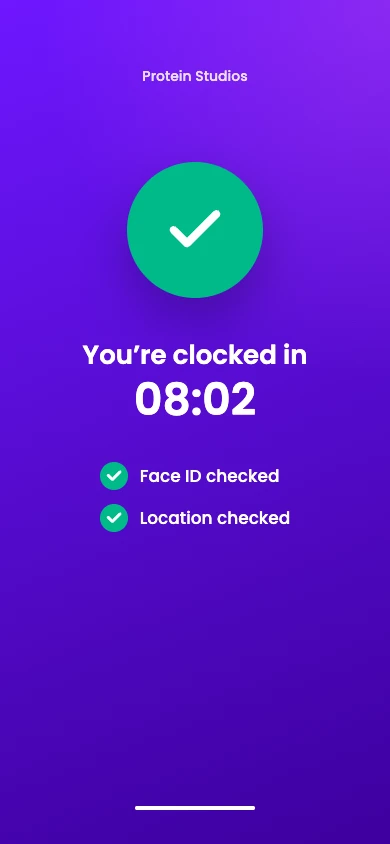
3. You’re clocked in
Vyce confirms the clock-in. Clock out using the methods chosen for that location.
Made for site life
One plate. A precise place to clock in.
GPS checks a team member’s position against your mapped location. NFC lets you bring the clock-in to a particular entrance, office or other specific spot. The plates have a robust metal back plate for all-weather use. Mount them on metal containers, wood or another chosen location on your site.
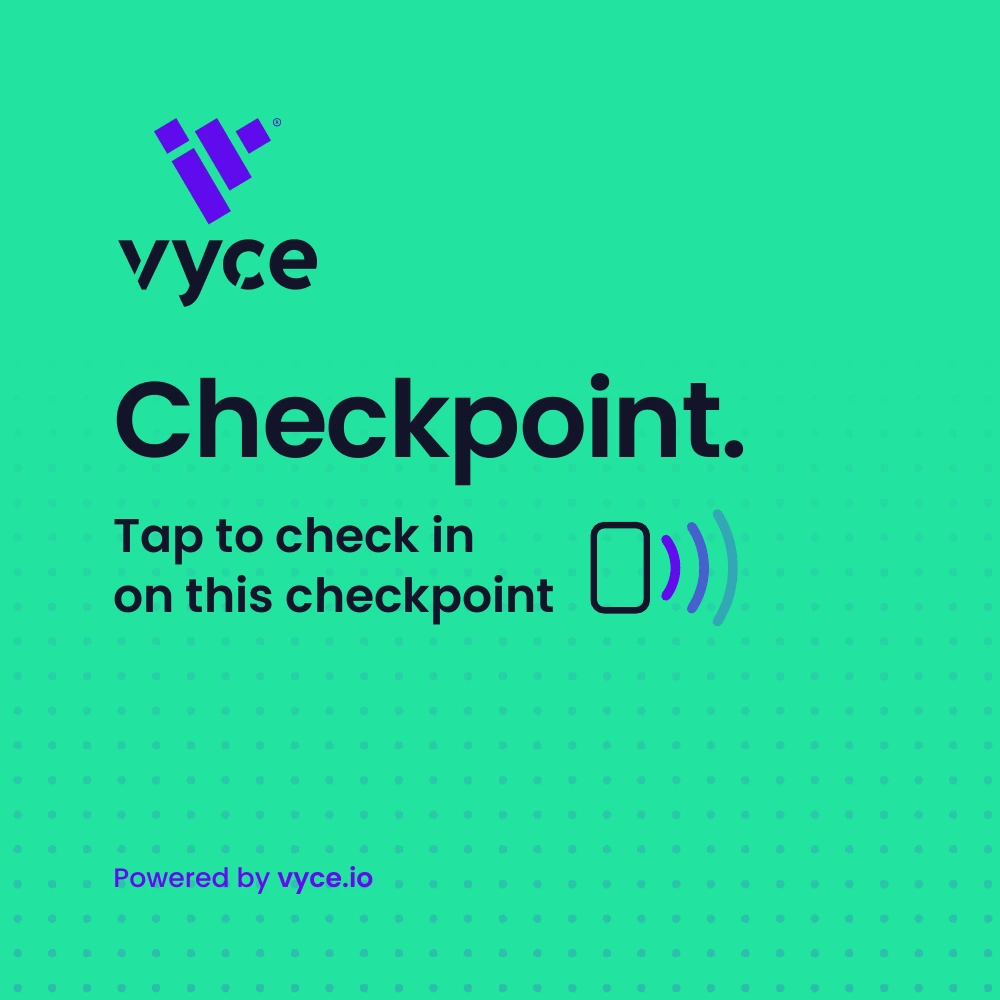
Vyce Checkpoints · Coming soon
Know who checked in, where and when.
Coming soon: Vyce Checkpoints will let people tap at a particular checkpoint, recording who they are, where they are, and the time and date. For security teams on perimeter rounds, or workers checking in while clocked in, each tap will create a timestamped snapshot at that checkpoint. Checkpoints is not available yet. Speak with the Vyce team to find out more.